
Combi Bluetooth Connection Failed, Troubleshooting:
Combi Bluetooth Connection Failed, Error Message
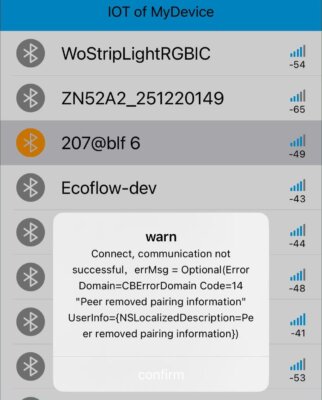 “Connection Failed: The Peer Device Has Removed the Pairing Information”
This error does not indicate a malfunction of the switch. It occurs when the switch clears its existing Bluetooth pairing records after an update, while your iPhone still retains the previous pairing information.
Because the pairing records no longer match, the connection is rejected. Follow the steps below to restore the Bluetooth connection.
Step 1: Forget the Old Device on Your iPhone
- Open Settings → Bluetooth on your iPhone.
- Find the switch in the device list (e.g., 207@blf 6).
- Tap the ⓘ icon next to the device.
- Select Forget This Device.
If the switch does not appear in the list, proceed to Step 2.
Step 2: Restart the App and Bluetooth
- Completely close the Bluetooth control app, removing it from your background apps.
- Reopen the app.
- Turn your iPhone’s Bluetooth off, then turn it back on.
Step 3: Restart the Switch
- Disconnect the power supply to the switch.
- Wait approximately 10 seconds.
- Reconnect the power supply.
This allows the switch to restart and enter a connectable state.
Step 4: Rescan and Reconnect
- Open the app and scan for nearby Bluetooth devices.
- Locate and select your switch.
- If a Bluetooth Pairing Request appears on your iPhone, tap Pair.
- Wait for the connection to complete.
Important Notes
- Make sure the switch is powered on during the connection process.
- Keep your iPhone close to the switch while pairing.
- If the connection fails again, repeat the steps above before attempting to reconnect.
If the problem persists, please contact technical support for further assistance.

